What is a CLI
Command Line Interface. Most users interact with Graphical User Interfaces. Developer tools have a CLI that you can interact with through the terminal.
The terminal is where engineers go to get things done.
It's how the internet is controlled and run.
But to the uninitiated... it just looks like a black box with a blinking cursor.
You want to play around with Claude Code. The videos and tutorials all say "terminal this" "terminal that".
Immediately you're not sure what's going on or if you even belong there.
That's totally normal. The Terminal has always been one of the biggest barriers to entry for engineering. And while engineering is getting much easier, the terminal remains a weird black box with white text and a blinking cursor.
The goal of this post is to make the terminal a little less confusing and intimidating.
The terminal is not a trendy buzzword, it's a core piece of computing history. For decades, if you wanted to do anything on a computer, you needed to know how to type it into the terminal. As User Interfaces got better and better through the 80s and 90s, it allowed more and more users to accomplish their tasks without ever opening the terminal.
But behind the scenes, the entire internet is essentially run on tools engineers use through a Command-Line Interface, or CLI. These are accessed through the terminal.
This is a functional overview of the MacOS terminal. You'll learn about what happens as you follow Anthropic's official Claude Code Quickstart.
Terminal 101
I open my terminal through spotlight search.
⌘+space then type terminal
Anatomy of the terminal
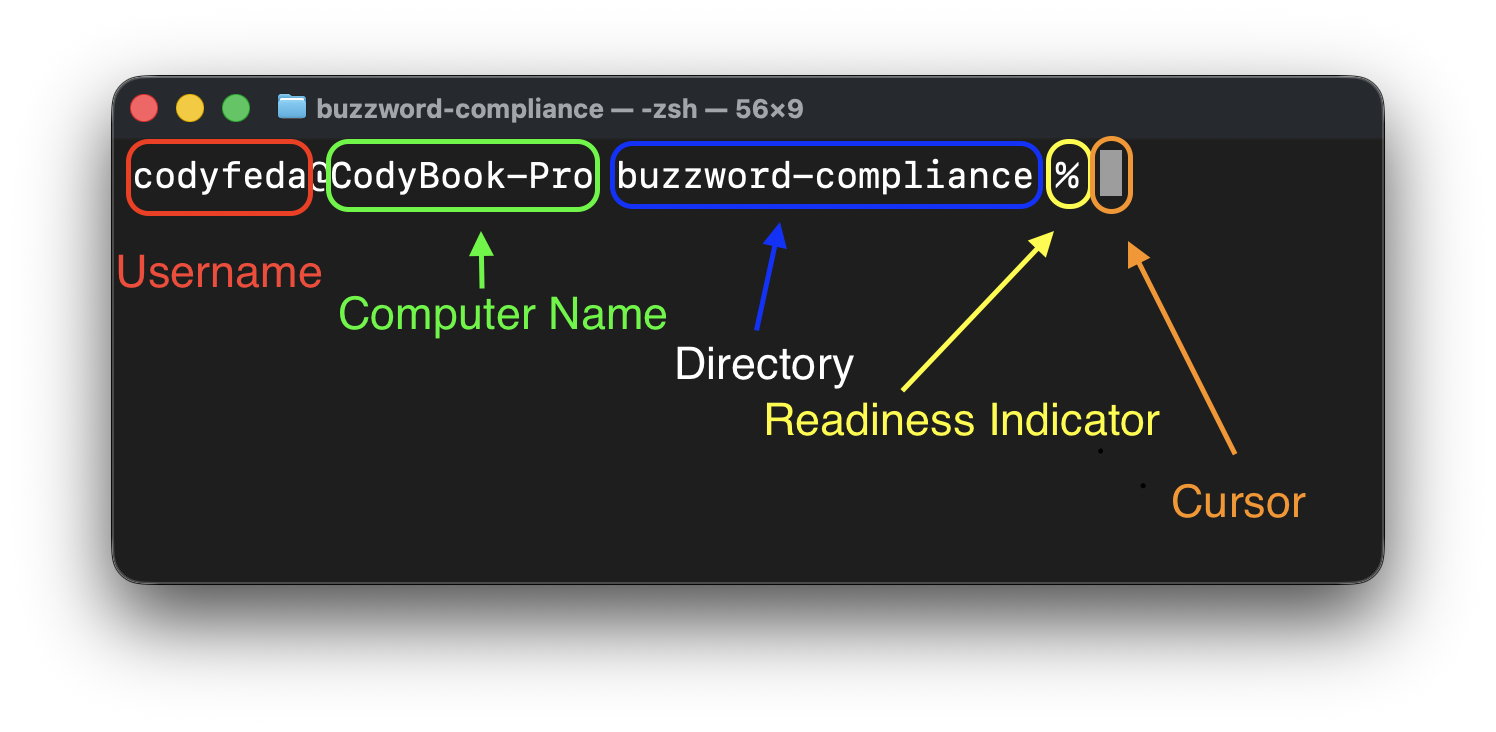
| Part | Example | What it means |
|---|---|---|
| Username | codyfeda | Your macOS account name |
@ | @ | Separator |
| Computer name | CodyBook-Pro | Your machine's network name |
| Current folder | buzzword-compliance | The folder you're currently inside |
% | % | Shell is ready for input |
I don't get it
Think of it like texting your computer. Instead of clicking menus, you're telling it exactly what to do.
You can think of using the terminal as though you're texting your computer.
Here are 3 standard commands you'll see
mkdir and ls
mkdir = make directory. This creates a new folder with the name you specify. Similar to right-click -> New Folder through finder
ls -l = long list of all files in directory. This is similar to just having a finder window open
mv
mv [original folder name] [new folder name] = move directory from one path to another, or rename
cd
cd [directory] = change directory navigate through file structure
curl
curl [url] = client URL. Fetches whatever is at that address and prints it to the terminal.
Think of it like your browser, but without the UI. When you visit a website, your browser makes a request and renders the response as a page. curl makes the same request and dumps the raw response — text, JSON, HTML, whatever comes back.
curl "https://wttr.in/San+Francisco?format=4"
Try that. It returns one line:
san francisco: ☀️ 🌡️+67°F 🌬️→11mph
Claude Code Installation
curl -fsSL https://claude.ai/install.sh | bash
This looks like one command but it's actually two, connected by | called a pipe. A pipe takes whatever comes out of the left side and feeds it directly into the right side.
Left side: curl -fsSL https://claude.ai/install.sh downloads a script file from Anthropic's servers. The flags control the noise:
-ffail silently if something goes wrong-sno progress bar-Sbut still show actual errors-Lfollow redirects
Right side: bash runs whatever it receives as a script. So the output of curl gets handed directly to bash to execute.
The whole thing is shorthand for: download this script and run it immediately. You'll see this pattern constantly. It's how most developer tools get installed.
Is this safe?
Only if you trust the source. You're telling your computer to download and run arbitrary code from the internet. With Anthropic, yes. With a random blog post, read it first.
Step 2
claude
Now that you have Claude installed, you can run it in the command line using claude.
claude is a command that opens a whole new process within the terminal. You can think of this being the same as double-clicking an icon to open an application. But instead of opening a new window, it switches the terminal to something different.
You can see the difference because it no longer shows your username and current folder at the beginning of each line. You're now inside Claude Code's own environment.